Introducing Audio Recording in the Cognitive3D Unity SDK (v2.2.0)


🎧 Introducing Audio Recording in the Cognitive3D Unity SDK (v2.2.0)
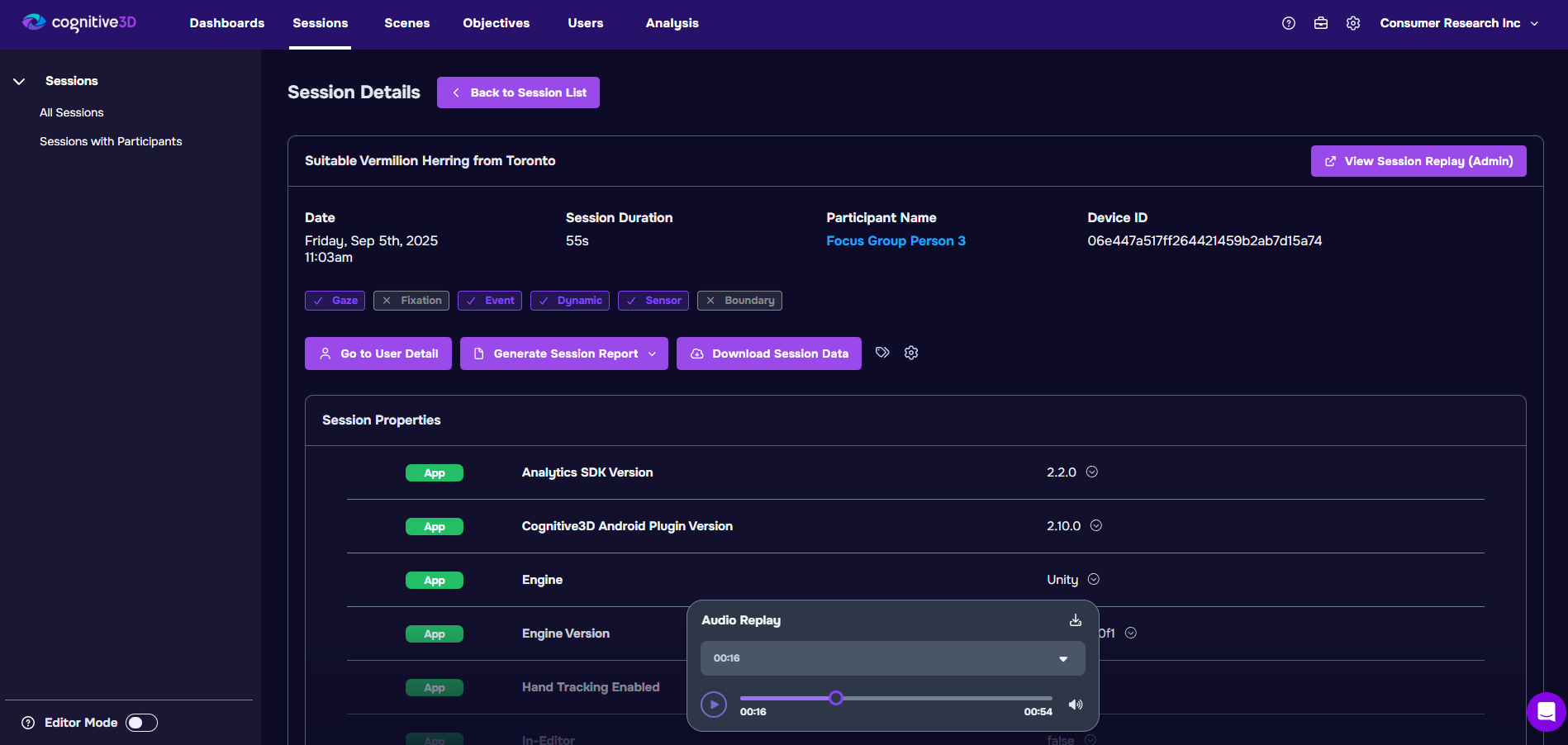
We’re excited to announce the release of Cognitive3D Unity SDK v2.2.0, now available on GitHub. This update introduces Audio Recording, a highly requested feature that allows developers and researchers to capture both user microphone input and in-app audio output during a session. By adding audio context to spatial analytics, teams can gain a much deeper understanding of how users experience, interpret, and interact with immersive Unity content.
🔊 Capture the Full Audio Experience
Audio plays a critical role in immersive experiences, from spoken instructions and AI conversations to environmental cues and sound design. With v2.2.0, Cognitive3D makes it possible to capture this audio alongside existing behavioural and spatial data.
Microphone Recording
Microphone recording allows you to capture what users are saying during a session. This is especially useful for applications involving voice commands, conversational AI, training simulations, or usability testing. For example, you can review how users verbally respond to prompts, where they hesitate, or how they phrase questions when interacting with virtual characters or systems. When paired with session timelines and spatial data, spoken feedback can reveal moments of confusion, engagement, or intent that would otherwise be invisible.
In-App Audio Recording
In-app audio recording captures the audio output generated by your Unity application. Developers can attach audio recorders directly to GameObjects with Audio Sources, making it possible to isolate specific sounds such as dialogue, alerts, or environmental audio. This is particularly valuable for evaluating sound design, understanding whether users hear and react to important cues, or reviewing exactly what audio feedback was present at key moments during an experience.
Together, microphone and in-app audio recording provide a richer layer of context that complements Cognitive3D’s existing analytics; helping teams understand not just where users were looking or moving, but also what they heard and what they said at critical points in the experience.
🔐 Privacy First
Audio recording is disabled by default in the Cognitive3D Unity SDK. To enable this feature, developers must contact the Cognitive3D team and provide details about their intended use case. This additional step helps ensure that audio capture is used responsibly and in alignment with user expectations and platform requirements.
Cognitive3D’s audio recording implementation follows best practices outlined by the XR Privacy Framework: an initiative created in-house that is focused on promoting transparency, consent, and responsible data handling across AR and VR experiences. By aligning with this framework, we aim to support developers in clearly communicating when audio is being recorded, obtaining appropriate user consent, and handling captured audio data in a privacy-conscious way.
This approach helps teams confidently add audio context to their analytics workflows while respecting user trust and complying with evolving privacy standards across immersive platforms.
💡 Other Improvements in v2.2.0
In addition to audio recording, Unity SDK v2.2.0 includes several quality-of-life improvements and platform enhancements:
- New SDK callbacks to support advanced workflows, including real-time machine learning and custom data pipelines.
- Expanded OpenXR support, enabling more robust capture of hand position and rotation data across compatible devices.
- Improved permission validation for audio recording, using XR Privacy Framework to better handle platform-specific requirements.
- Minor fixes and adjustments to OpenXR hand tracking orientation data for improved consistency.
These updates continue to improve stability, extensibility, and data quality across supported XR platforms.
Getting Started
Audio Recording is available starting in Unity SDK v2.2.0 and can be configured through the Feature Builder in the Unity editor. Once enabled for your organization, you can choose whether to record microphone input, in-app audio, or both, and assign recorders to specific Audio Sources as needed.
For step-by-step setup instructions and best practices, check out the Audio Recording section of our Unity documentation.