Introducing the Cognitive3D CLI: Fast, Direct Access to Your XR Data


Meet the Cognitive3D CLI
Today we're introducing the Cognitive3D CLI: a command-line tool for querying sessions, projects, objectives, and spatial analytics data directly from your Cognitive3D organization.
It's built for developers, data scientists, and technical teams who need fast, repeatable access to structured XR data without the overhead of dashboards or more verbose interfaces. Instead of exporting from a dashboard or building a custom API client, you can run a single command and get structured results in JSON, CSV, or table format.
As XR programs scale, so does the volume of data they generate. More teams are building pipelines, running repeated analyses, and integrating XR data into broader systems. As these data workflows become more automated, the overhead of manual exports or custom scripts adds up. The CLI is designed to support that shift, providing a more efficient and direct way to access and work with Cognitive3D data.
The Gap Between XR Dashboards and Raw APIs
Accessing XR analytics programmatically has traditionally involved a tradeoff. You either work through dashboards and higher-level tools that provide structure and visualization but aren't built for automation, or you build directly on top of APIs, which require more setup and ongoing maintenance.
For technical teams, this often creates friction. For example, a script that pulls weekly session data still needs authentication handling, pagination, error recovery, and output formatting before the data is usable. Over time, this adds complexity to workflows that should be straightforward.
As data volumes increase, this overhead becomes more noticeable. Teams need a way to access XR analytics data quickly, consistently, and without unnecessary convolution.
A Direct Line to Your XR Data
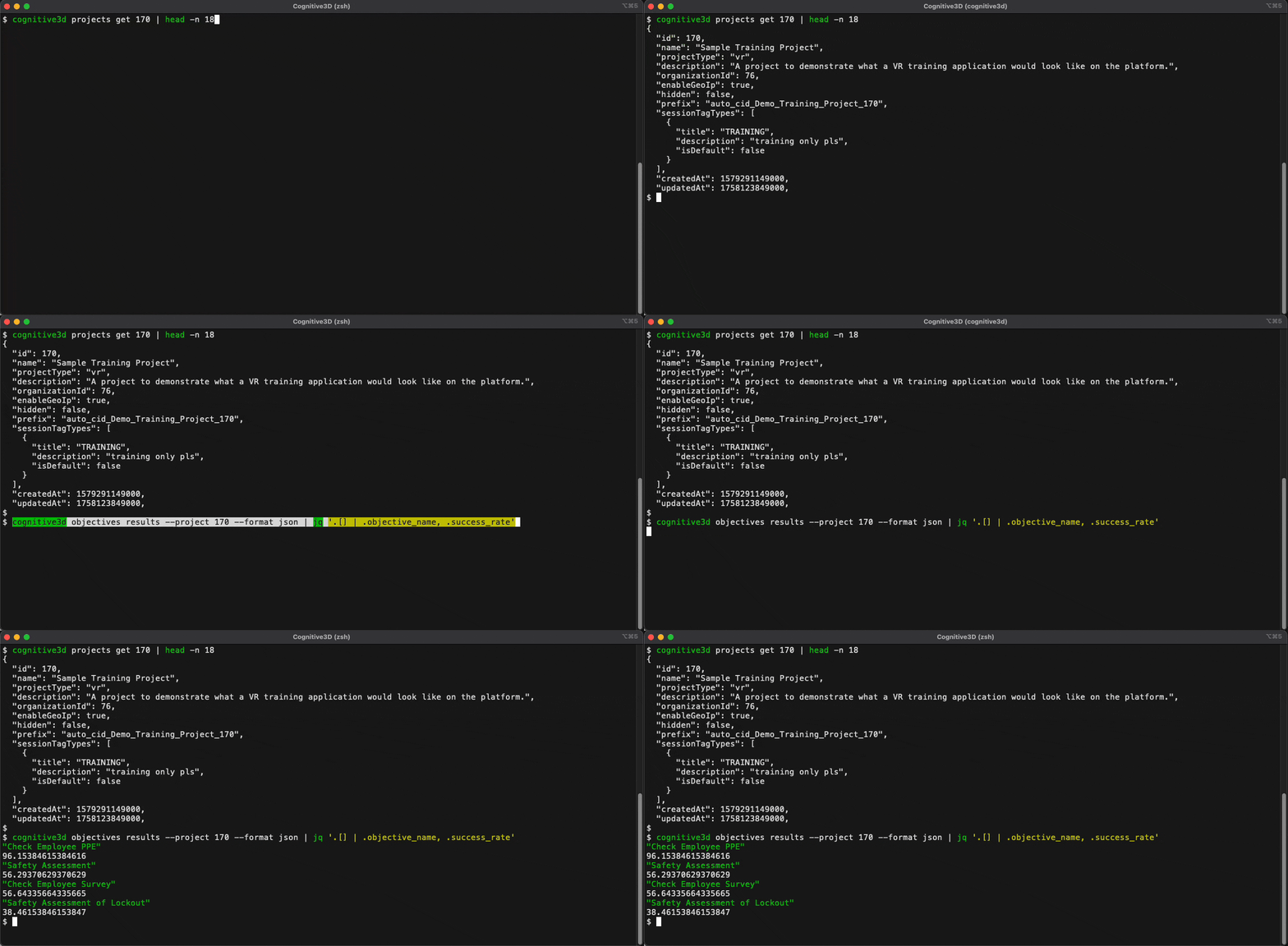
The Cognitive3D CLI connects directly to the Cognitive3D API, giving you command-line access to sessions, projects, objectives, performance metrics, and spatial analytics data without building a custom integration layer.
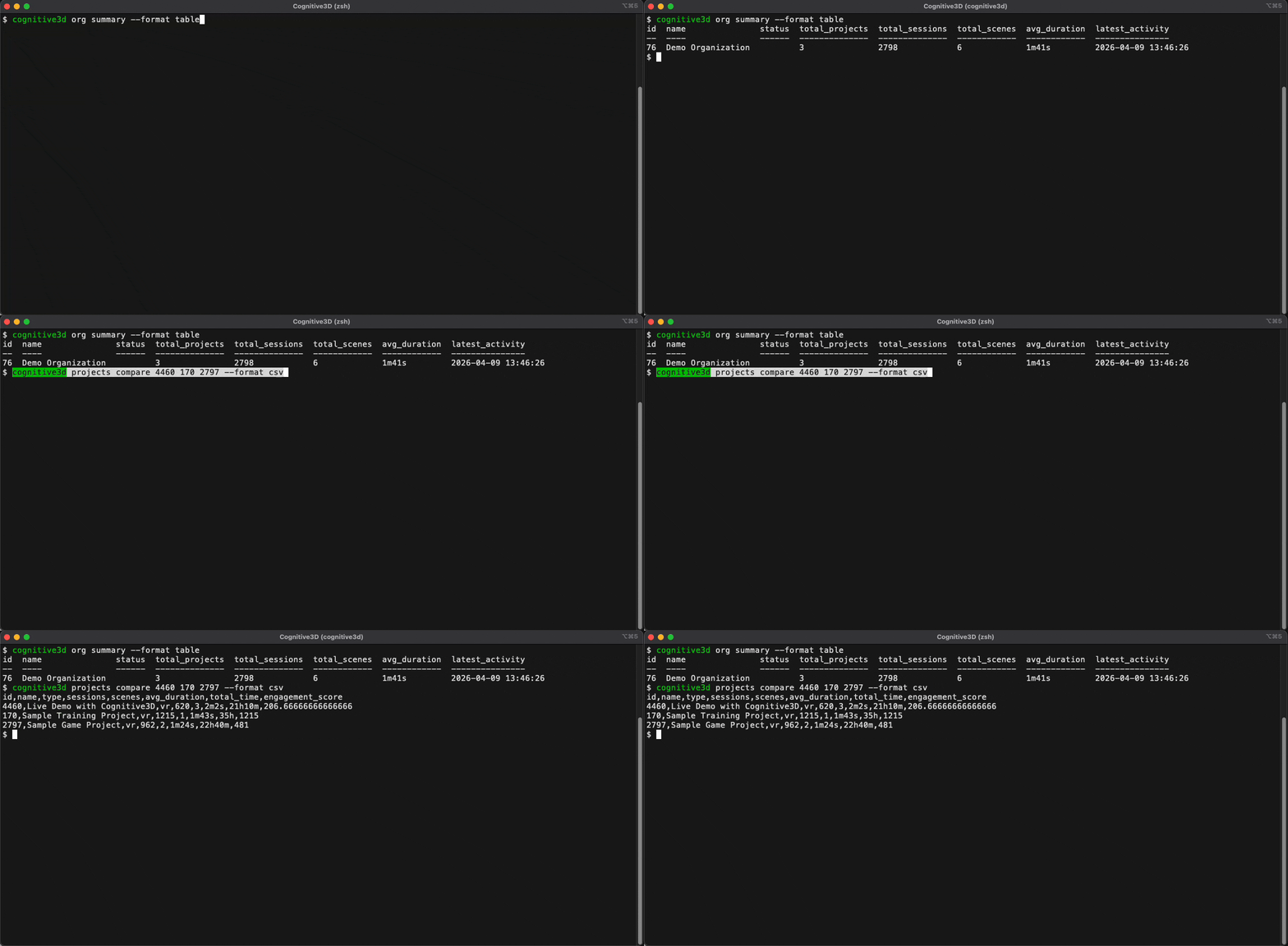
A single command can return an organization summary, compare behaviour across projects, or pull session-level data for a specific scene and version. Results come back as JSON, CSV, or formatted tables, ready to pipe into scripts, store in a database, or open in a spreadsheet.
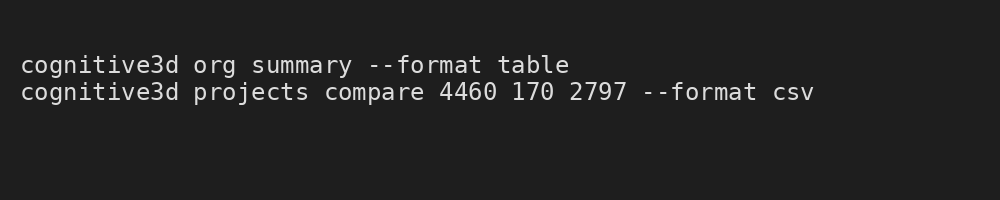
The design is intentionally minimal. The CLI returns raw, structured data, not interpretation, giving you full control over how results are processed and analyzed within your own systems.
Built for Efficiency - Including AI Workflows
The CLI is designed to return precise results without unnecessary overhead. Queries are scoped to exactly the data you request, and output is structured by default, reducing the need for additional parsing or transformation.
This matters most in automated data workflows. A script that pulls weekly project metrics or a pipeline that feeds session data into a reporting tool should not require extra steps to clean or reshape the response. The CLI provides a more direct path from request to result, making it easier to integrate XR data into repeatable, production-ready workflows.
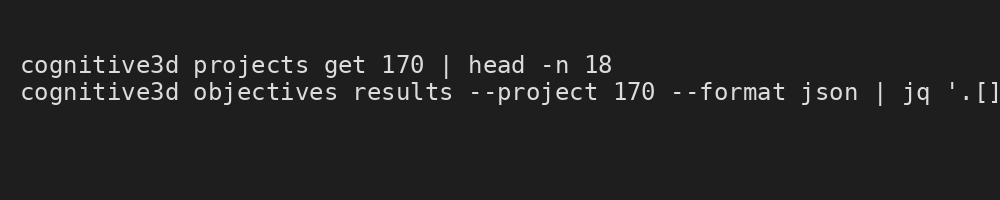
It also matters for AI-assisted workflows. The CLI's responses are compact and structured, making them well-suited for use with LLMs and AI agents, including Cognitive3D's own MCP server. Where the MCP server supports flexible, conversational queries, the CLI is optimized for cases where you already know what you need and want the answer with minimal token usage.
Secure, Organization-Level Access by Design
Access is scoped to your organization through an API key tied to your organization ID. Every query is authenticated at the organization level, and all communication is encrypted.
The security model follows the same principles as the rest of the Cognitive3D platform, including the MCP server. If your team already uses the API or MCP server, the CLI uses the same authentication pattern, so there is no new access model to configure.
It also supports enterprise requirements such as corporate proxies, allowing teams in restricted network environments to access XR data securely without additional workarounds.
When to Use the CLI (and When Not To)
The CLI doesn't replace the dashboard or the MCP server. Each serves a different role, and choosing the right one depends on how you want to work with your data.
The dashboard is built for exploration and communication. It helps teams visualize behaviour, review sessions, and share insights across stakeholders. The MCP server supports more flexible, AI-assisted querying, where the question itself may evolve as you explore.
The CLI is designed for situations where you already know what you need. If you're running a script, powering a pipeline, or executing repeated queries against XR data, it provides the most direct and efficient way to retrieve it. For developers and data teams working with structured outputs, it fits naturally into existing tooling and workflows.
Get Started
The CLI runs on macOS, Linux, and Windows, and installs in one step via Homebrew or direct binary download. Authenticate with your organization API key, and you're ready to start querying.
Explore the documentation: Getting Started with the Cognitive3D CLI
Once set up, you can begin running queries immediately and integrate Cognitive3D data directly into your workflows.
Ready To See Inside Your XR App?
Start capturing real user behaviour, app activity, and device inputs in full 3D.